
Tracking Creator Campaigns
Tracking Creators
Setting up tracking links for your creator campaigns allows you to measure the performance of individual creators and understand which partnerships drive the most value for your game. This guide covers two methods for creating creator tracking links in Gamesight.
Creating Trackers in Gamesight Console
The most straightforward way to set up creator tracking is through the Gamesight Console. This method works well when you're working with a smaller roster of creators or want to manually configure each tracking link.
Step 1: Navigate to Trackers
In Gamesight Console, click Measurement > Trackers > Create.
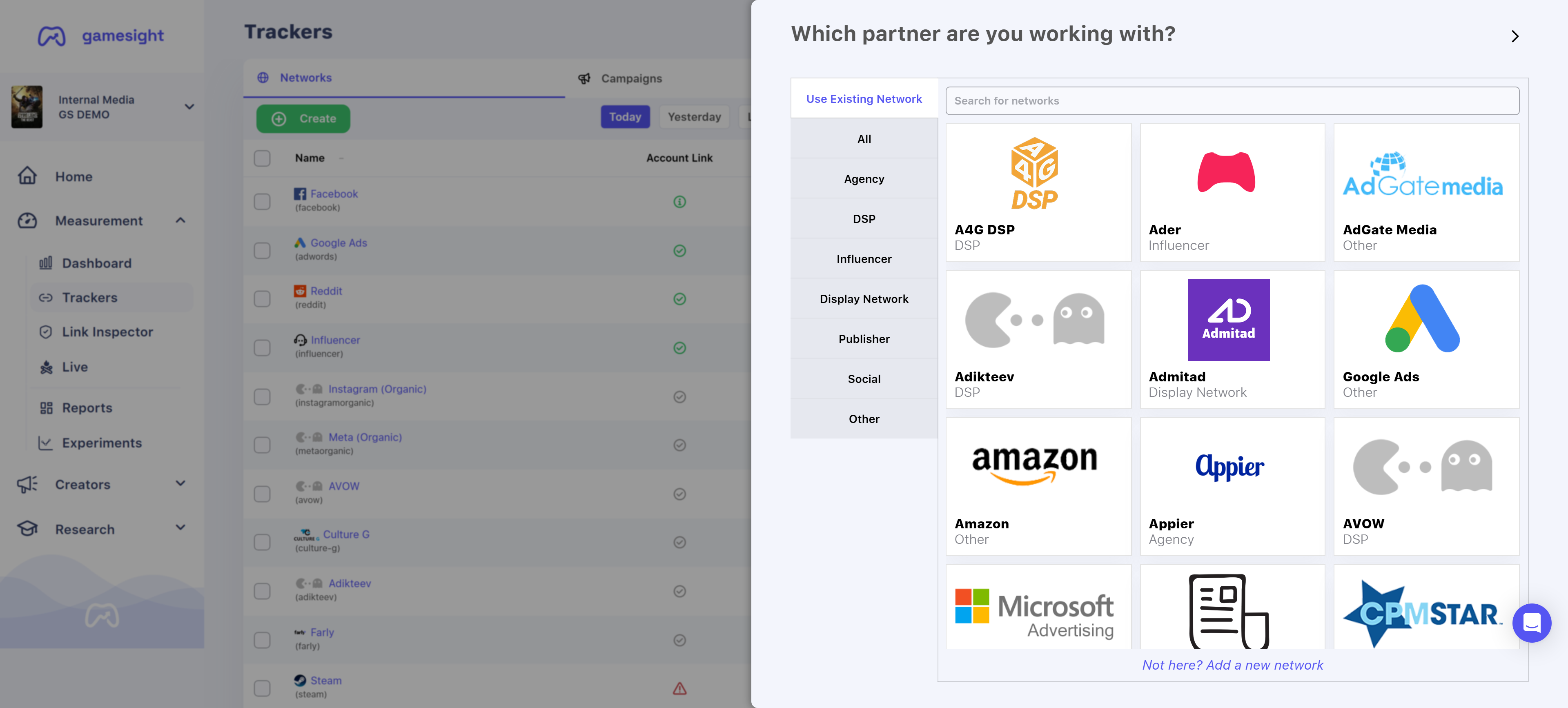
Step 2: Select or Create Your Network
You have two options for organizing your creator campaigns:
- Use the existing Influencer network: Search for and select "Influencer" from the network list
- Create a custom network: Create a new network and name it however you'd like (e.g., "Q4 Creator Campaign", "Holiday Activations"). See our guide on creating a custom network tracker for detailed instructions.
Step 3: Plan Your Hierarchy
Once you've selected your network, you'll need to define your campaign structure. Gamesight uses a four-level hierarchy: Network > Campaign > Ad Group > Ad.
You can organize this in different ways depending on your needs. For example, if you're running multiple campaign types concurrently (like paid sponsorships and earned activations), you could use Campaign for the overall initiative, Ad Group to separate types like "Paid", "Earned", etc., and Ad for individual creator names. If you're running a simpler activation, you could use Campaign for the campaign name, Ad Group for individual creator names, and skip the Ad level entirely.
Both approaches work equally well - choose the structure that matches how you want to report on your campaigns.
Step 4: Create and Distribute Links
Once you've decided on your structure, fill out your Campaign, Ad Group, and/or Ad fields according to your planned hierarchy, then click 'Create Trackers' to generate your first tracking link. Copy the creator's unique Click URL from either the Ad Group or Ad level (depending on which level you created the tracker at) and provide it to them for use across their content. To create links for additional creators, repeat the process with each new creator's name.
Link Shorteners
Gamesight tracking links can be wrapped using services like bit.ly. This is a common practice since bit.ly is more widely recognized across platforms like Twitch chat, YouTube video descriptions, and social media posts. Wrapping your links can make them feel more familiar to audiences and may improve click-through rates in certain contexts.
Bulk Tracker Creation
If you're working with a larger creator roster - generally 10-15 or more creators - using Bulk Tracker Creation may be easier and more efficient than creating individual trackers through the Console.
Bulk Tracker Creation allows you to set up multiple creator tracking links at once using a spreadsheet. This method is ideal for:
- Large creator activations with dozens of participants
- Campaigns where you need to quickly generate links for many creators
- Situations where you have creator lists from another tool that you can add to your spreadsheet
You can find detailed instructions for using Bulk Tracker Creation in our Bulk Tracker Creation guide.
Understanding Attribution for Creator Campaigns
For Gamesight attribution customers, creator tracking links do more than just count clicks - they provide full attribution reporting for your creator campaigns. This means you'll see all attributed goals tied to each individual creator, including installs, purchases, retention milestones, and any other goals you've configured in Gamesight.
This attribution data sits alongside standard click metrics, giving you a complete picture of each creator's performance and true impact on your game's growth.
Updated 7 months ago